How do I update my Trust Center compliance badges and status?
Last updated: May 19, 2026
As you progress through your compliance journey, you may want your Trust Center to reflect the current status of your compliance programs — whether a certification is In progress or Compliant. You may also want to show or hide specific compliance badges (e.g., SOC 2, ISO 27001, GDPR, PCI) on your Trust Center page.
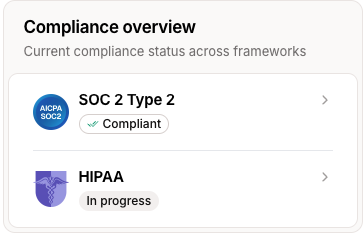
Compliance badges and their statuses on your Trust Center are managed by the Oneleet team. To request a change, reach out to your Security Program Manager with the following information:
Which compliance framework(s) you want to add, update, or hide (e.g., SOC 2, ISO 27001, GDPR, PCI).
The desired status for each badge — for example, "In Progress" or "Compliant."
Any relevant supporting documentation, such as a completed audit report or certificate, if applicable.
Once your request is received, the Oneleet team will update your Trust Center accordingly. Badge updates typically take effect shortly after the change is made.
Automatic updates: When a compliance program is completed and marked as compliant by the Oneleet team, your Trust Center and any embedded compliance badge on your website will be updated automatically to reflect the new status.
Embedding your badge: If you have embedded your Oneleet compliance badge on your website, you can find the latest embedding link in your compliance program page within the Oneleet app. If the badge does not automatically update on your website within a few hours of a status change, contact your Oneleet point of contact for assistance.