How to resolve Attack Surface findings that remain open after a retest
Last updated: October 1, 2026
If Attack Surface findings remain open after a scan or retest reports no issues, first confirm that automatic scanning is still enabled for the affected assets. If scanning is disabled, Oneleet cannot retest those assets to verify that the findings have been fixed.
You can either re-enable scanning so Oneleet can verify the fixes, or manually resolve findings that you have already confirmed should be closed.
Before you start
Confirm which Attack Surface findings are still open.
Check whether automatic scanning is enabled for the affected assets.
If scanning was disabled intentionally, confirm which findings you want to resolve manually.
Steps
Re-enable scanning
Go to Attack Surface → Assets.
Enable automatic scanning for the assets you want Oneleet to scan.
Run another scan or retest.
Oneleet can then verify the fixes and close findings that are not re-detected.
Resolve findings manually
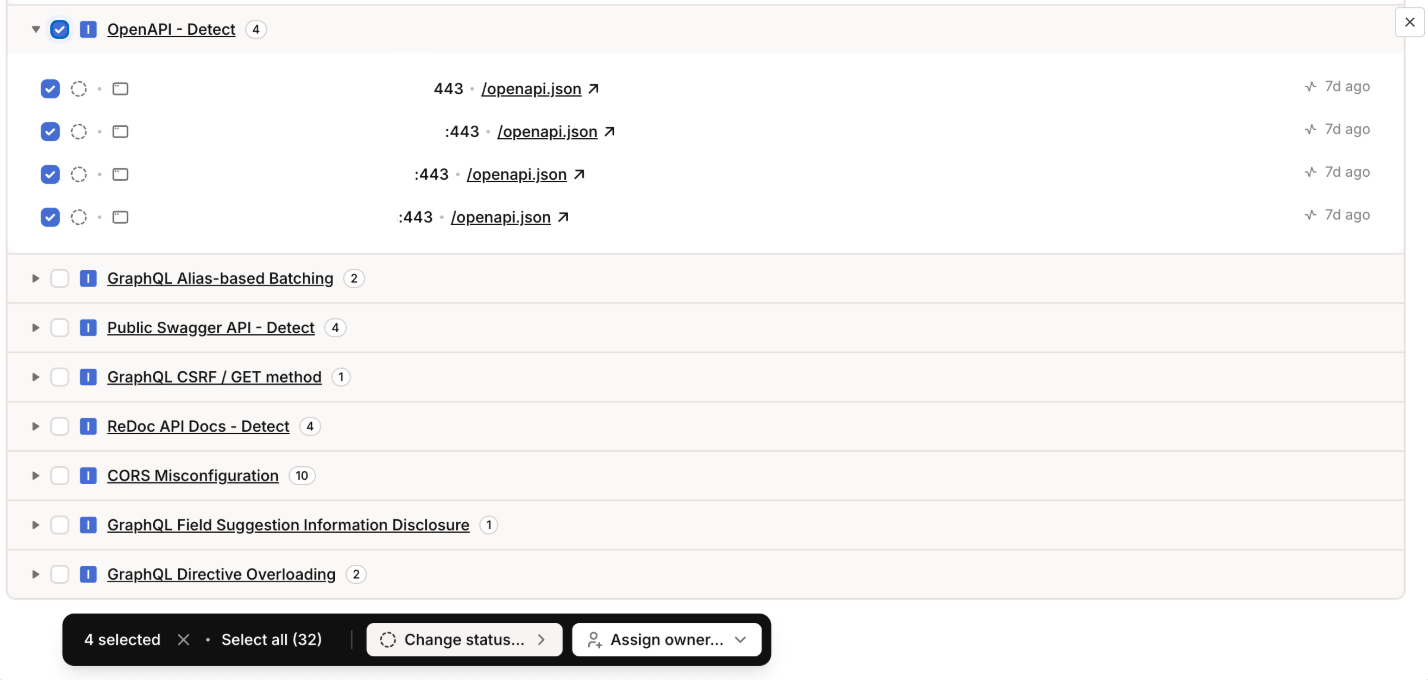
If you do not want to re-enable scanning, you can resolve findings individually or in bulk.
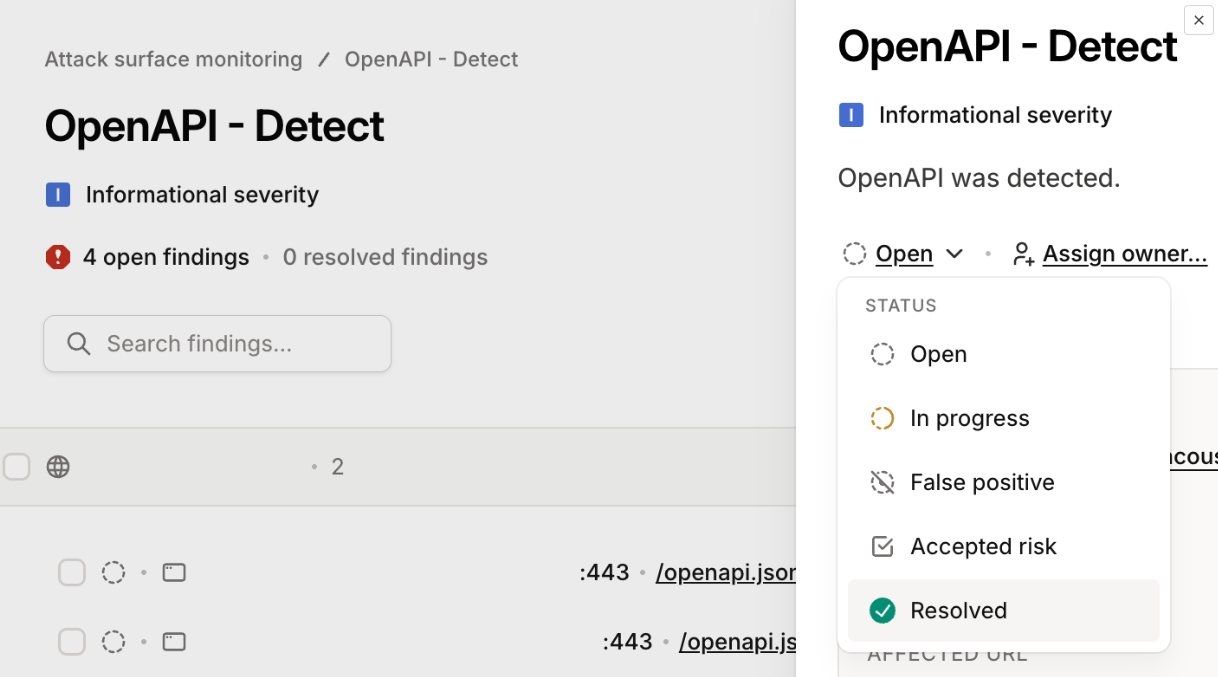
Resolve findings individually
Open the finding you want to resolve.
Click its current status, such as Open.
Select Resolved.
Resolve findings in bulk
Select the findings you want to resolve.
Choose Change status from the bulk actions at the bottom of the page.
Change the selected findings to Resolved.
Confirm the result
Findings that are manually updated should show a Resolved status. If you re-enabled scanning instead, the next scan or retest should be able to verify the fixes and close findings that are no longer detected.